
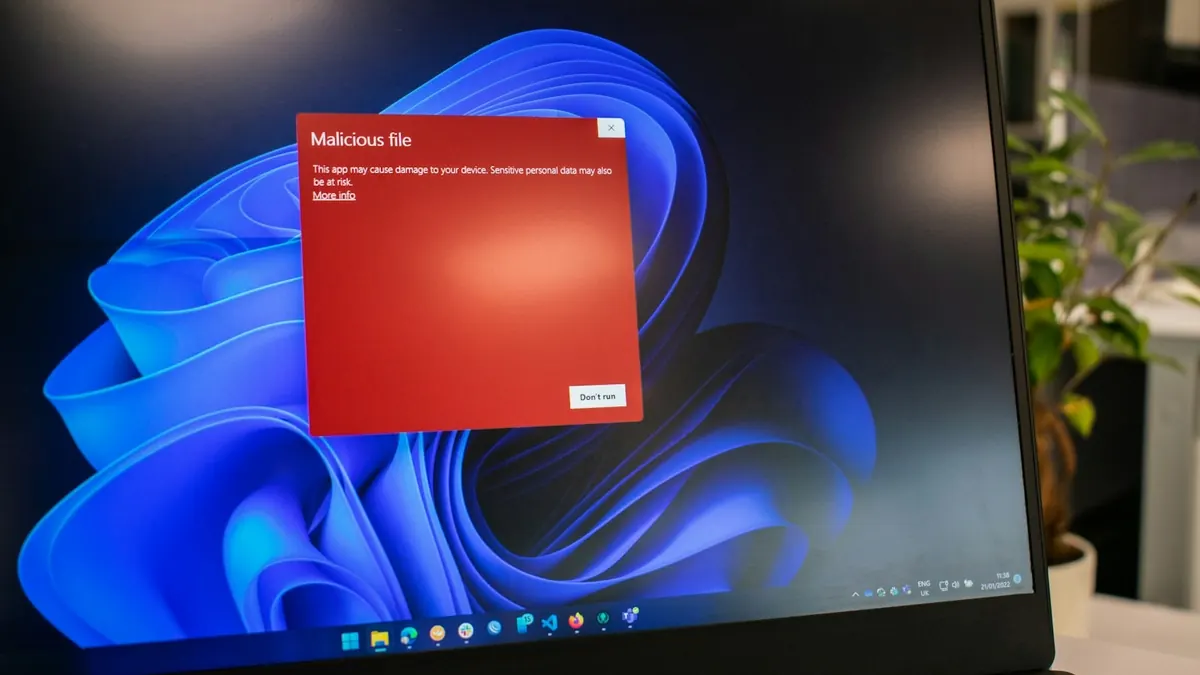
Programs, PDFs, Office files and ZIP archives can all carry malware, and the antivirus on your computer won't catch everything. Checking a file against dozens of engines before you open it takes under a minute.
Here's how to scan a file before you open it, how to read the result, and what an online scan can't tell you.
Upload the file to a multi-engine scanner before you open it, then read which engines flagged it and why, not just the score. A clean result means no engine knows the file as malicious, which is good news but not a guarantee. Don't upload anything confidential: files VirusTotal hasn't seen before are shared with security companies.
Why You Should Scan Files Before Opening Them
No single antivirus engine catches 100% of threats. New malware variants appear daily, and it takes time for individual antivirus vendors to update their databases. Scanning a file against multiple antivirus engines simultaneously dramatically increases the chances of catching something that your installed antivirus would miss.
The files most commonly used to deliver malware in 2026:
- Executable files (.exe, .msi, .bat, .ps1) — the most direct delivery method
- Office documents (.doc, .docx, .xls, .xlsm) — with malicious macros embedded
- PDF files — can contain JavaScript exploits or malicious links
- ZIP and RAR archives — often used to bypass email filters
- APK files — Android apps downloaded outside the Play Store
- Scripts (.js, .vbs, .py) — especially dangerous if double-clicked
How to Scan a File for Viruses Online (Step by Step)
Go to Scanify's File Scanner
Visit scanify.to/file-scanner or open the main app and click the File tab. No installation or account required to get started.
Upload your file
Click the upload area or drag the file in. Upload files up to 1 GB to Scanify. Files up to 650 MB can be submitted to VirusTotal. Larger files use an existing report by fingerprint; unknown fingerprints have no verdict.
Before you do, think about what is in it. If VirusTotal hasn't seen the file before, it is uploaded there, and VirusTotal shares submitted files with security companies and researchers. A suspicious attachment is fine to upload; your tax return or a confidential work document is not.
Click Scan
Scanify first checks the file's fingerprint (its SHA-256 hash). If VirusTotal already knows the file, the result is almost instant. If not, the file goes to VirusTotal's multiple engines, which usually takes 10–30 seconds.
Read the results
You'll see a 0–100 risk score, and below it which engines flagged the file and what they called it. The names matter more than the number: one engine saying "generic suspicious" is very different from twenty agreeing on "Trojan".
Supported File Types
Scanify accepts any file type, including:
What the Scan Results Mean
These are the same bands the scanner shows. The full weighting is on How we score.
0–4: Safe
No engine flagged the file. That is the result you want, but it means "not known to be malicious", not "proven safe". Brand-new malware can be clean everywhere for its first hours.
5–19: Low
One engine, or a weak detection. Often a false positive, especially for small tools, game mods and software that packs or obfuscates its code. Look at which engine flagged it and what it called it.
20–39: Medium
Several engines are uneasy, or the detection is for "potentially unwanted" software like adware. Don't open it unless you trust where it came from.
40–69: High
Reputable engines call it malicious. Don't open it.
70–100: Critical
Broad agreement that the file is malware. Delete it. If you already opened it, run a full scan with your installed antivirus and change passwords you used on that computer since.
When to Be Extra Cautious
Always scan before opening when:
- The file came from an email attachment you weren't expecting
- You downloaded it from a file-sharing site, torrent, or unofficial source
- A contact sent it via messaging app (WhatsApp, Telegram, Discord) without context
- The file extension doesn't match what you expected (invoice.pdf.exe is actually an executable)
- The file was "cracked" or "patched" software downloaded to bypass licensing
| What you see | Real file name | What it really is |
|---|---|---|
| invoice_0921.pdf | invoice_0921.pdf.exe | A program |
| Photos_Summer.zip | Photos_Summer.zip | An archive (scan what is inside too) |
| Report.docm | Report.docm | A Word file that can run macros |
What an online scan can't tell you
- Brand-new malware. A file built yesterday may not be known to any engine yet. A clean result lowers the risk; it doesn't remove it.
- Password-protected archives. Engines can't see inside them. Attackers send "invoice.zip, password 1234" for exactly this reason, which is itself a red flag.
- What the file does when it runs. Engines mostly recognise known patterns. They don't run the file the way your computer would.
- Large files. Upload files up to 1 GB to Scanify. Files up to 650 MB can be submitted to VirusTotal. Larger files use an existing report by fingerprint; unknown fingerprints have no verdict.
- Privacy. Uploading shares the file (see step 2). Scan suspicious files, not sensitive ones.
Scanning Files on a Mac
Macs get malware too, mostly adware and password-stealing apps disguised as cracked software or fake updates. macOS has a built-in check, Gatekeeper, that warns when an app is from an unidentified developer or hasn't been checked by Apple.
Take that warning seriously. Malware often comes with instructions telling you to right-click and choose Open, or to change a security setting, just to get past it. If a download asks you to do that, scan it first and think twice.
Scanning APK Files (Android Apps)
If you install Android apps from outside the Play Store (sideloading), scan the APK first. Malicious apps can read your messages, including bank login codes, and your contacts and location.
Also keep Google Play Protect switched on; it checks sideloaded apps too. And be suspicious of any app that asks for accessibility access or to read SMS when it has no reason to.